Using Your XA Solutions Customer Portal
Need to check an order, download an invoice or find a technical document?
Your XA Solutions Customer Portal puts that information within easy reach.
Here’s how to get started.
1
Log In to Your Account
Tap the Access Portal button or visit https://portal.xasolutions.com and enter your email address to sign in.
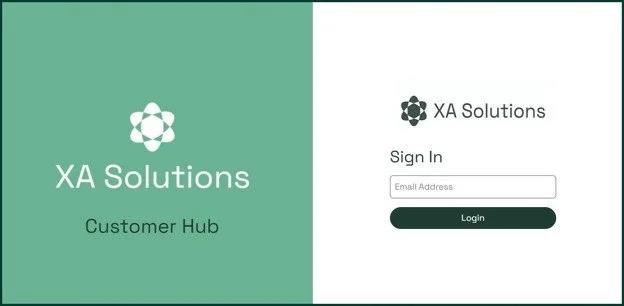
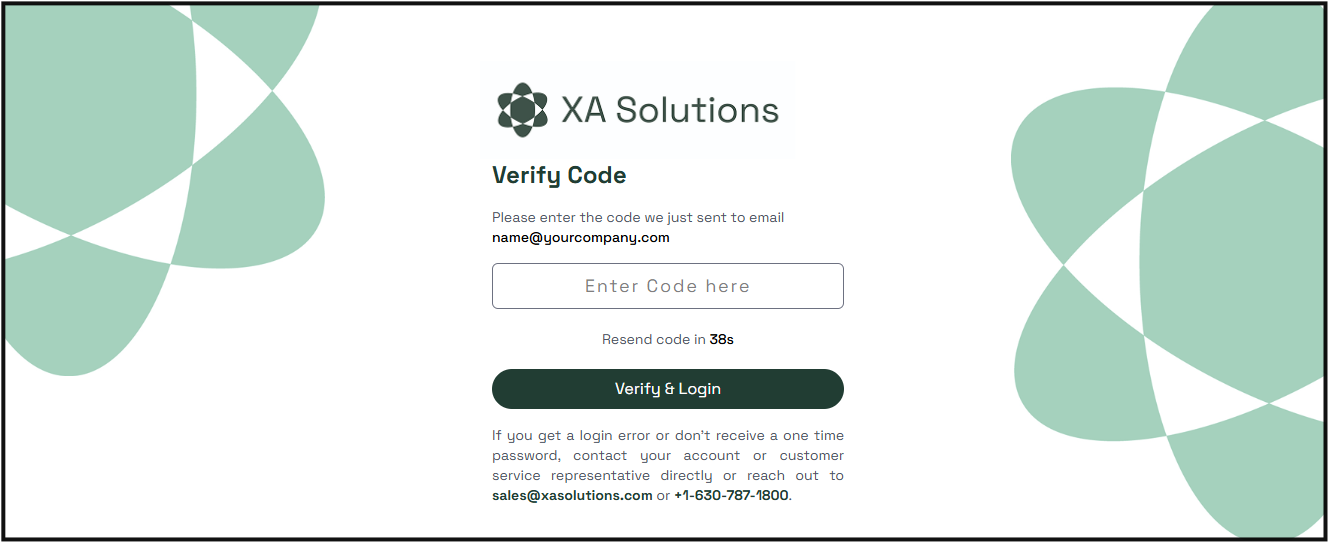
When logging in for the first time, you'll see a "Verify Code" screen.
Check your email, enter the code, and log in.
ℹ️
Trouble signing in? If you get a login error or you don't receive a code, you can contact your account or customer service representative directly or reach out to sales@xasolutions.com or +1-630-787-1800.
2
View Your Orders
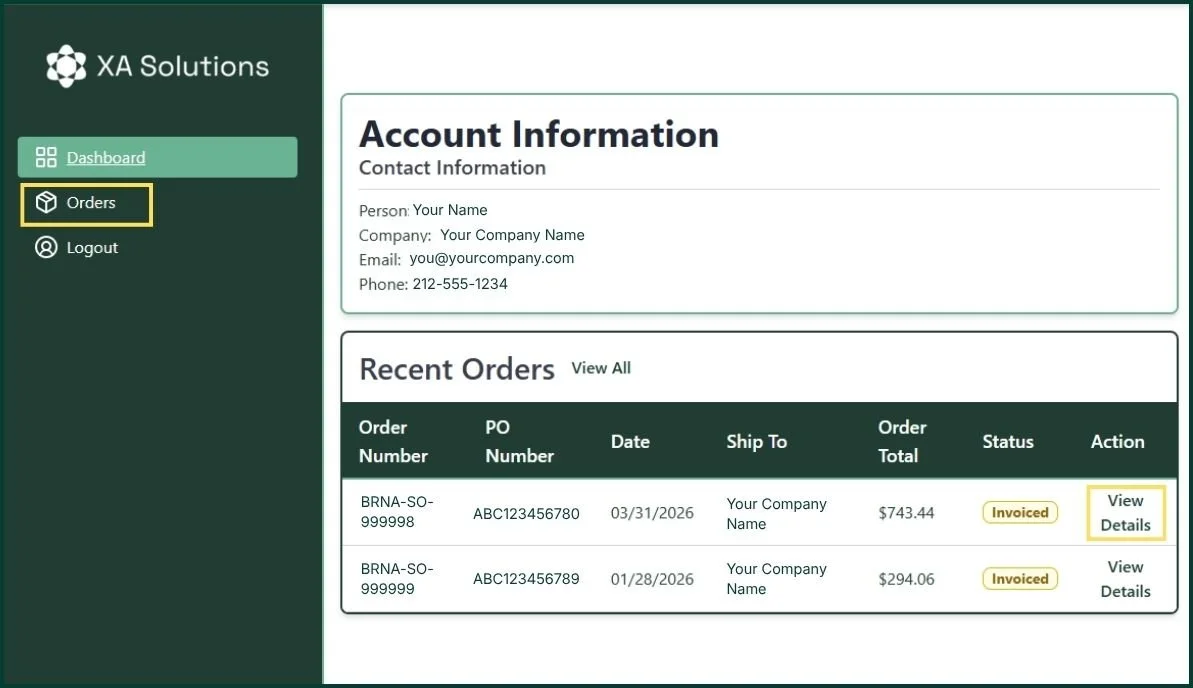
After logging in you’ll see your dashboard with your contact information and recent orders. From here, you can tap "View Details" on a specific order to see and print full order information or go to the Orders tab to see a complete list.
3
Access Order Details & Documentation
Inside the Order Details screen you’ll see full order information and have the option to print a copy.
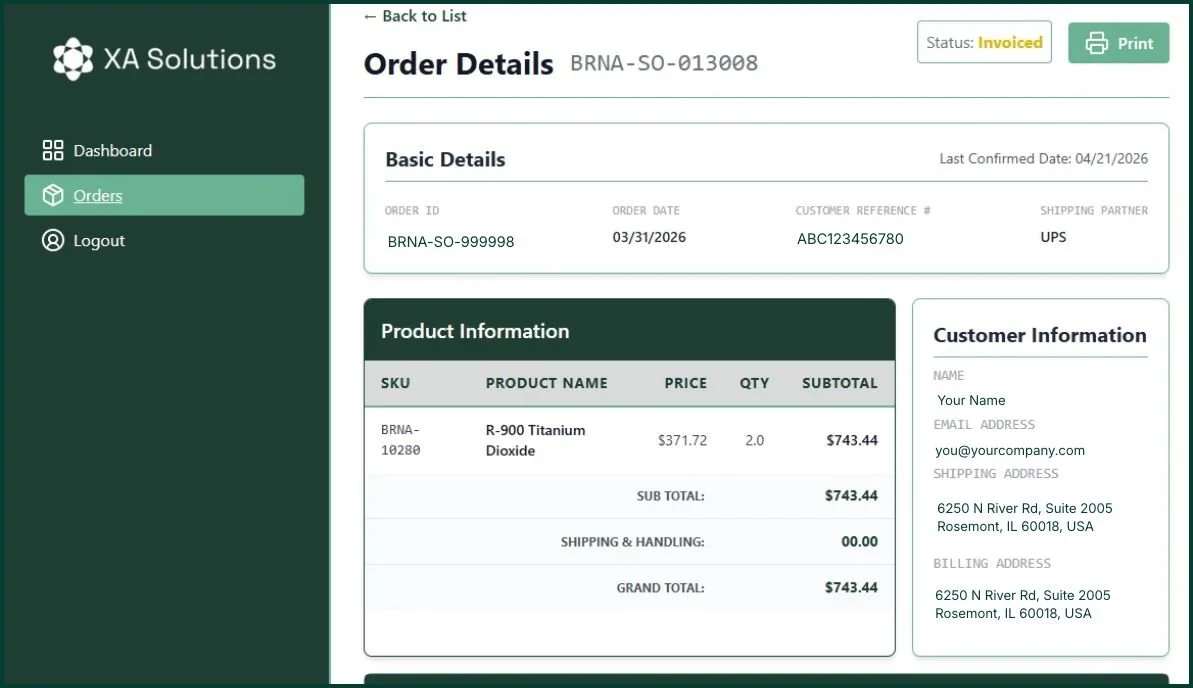
Below the initial order information, you’ll find:
Account manager contact information | Order status updates | Tech docs
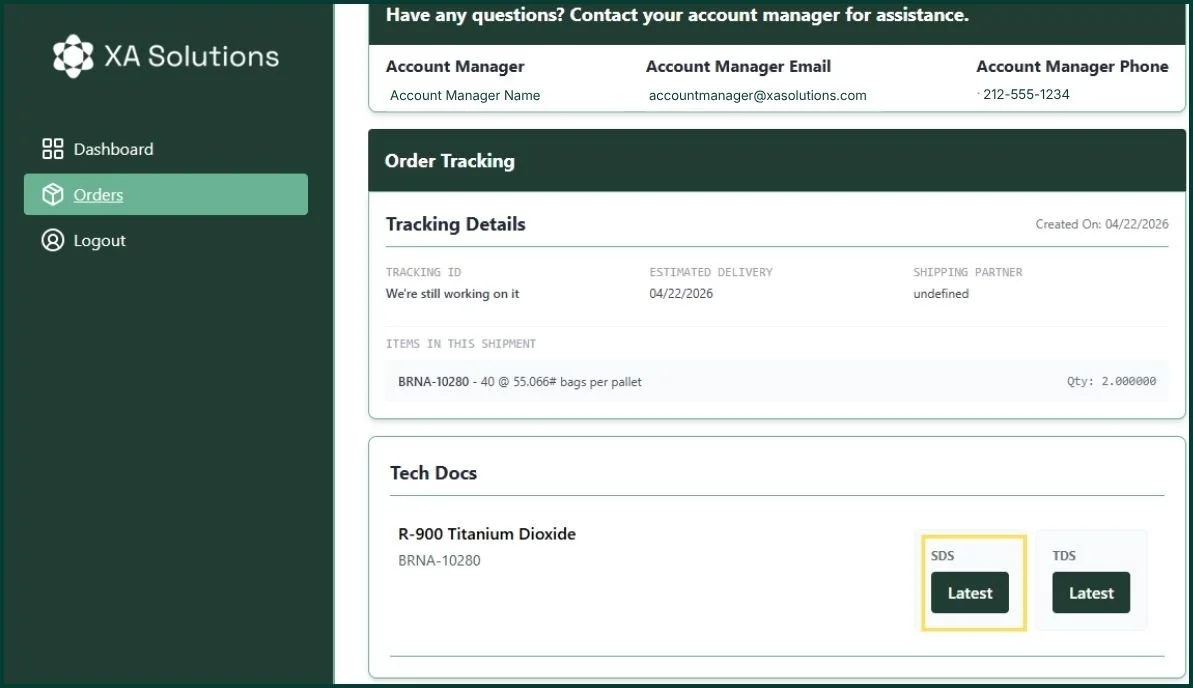
Document available? Tap Latest
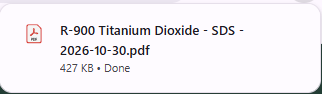
Tap “Latest” under SDS or TDS to download the most recent version available. The file name includes the product name, document type (SDS or TDS) and download date.
Not available? Tap Request
If either type of document isn’t available for an order, you’ll see “Request” instead of “Latest.” Tapping Request notifies Customer Service that you need the document and starts the request.